Social proofing = having lots of comments, likes, and shares on an ad.
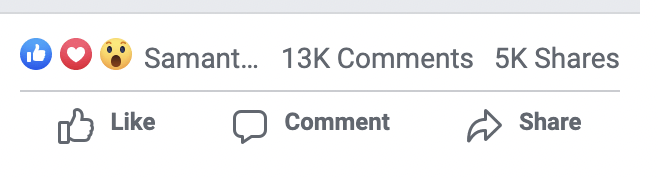
That looks good, right? Social proofing like this makes your ad creative into its own landing page, filled with real customer reviews, customer service answers to FAQs, and so much validity and legitimacy (i.e. street cred) that you won’t even know what to do with yourself.
Did you know you can make the same ad, with the same comments/likes/shares show up in all the campaigns and ad sets you want so that each ad isn’t its own separate ad with different engagement?
It’s a SUPER common question, and if you’ve reached this blog, you’re not alone.
Here's how to keep engagement on a Facebook or Instagram ad in multiple placements:
Create an ad.
Make sure the ad is being delivered to Facebook Feeds (you can’t social proof it if it is not placed in Facebook Feed)
Publish the ad
From the ad level in Facebook Ad Manager, click the checkbox of the ad you just created (on the left), click “Preview,” then click “View Facebook post with comments”
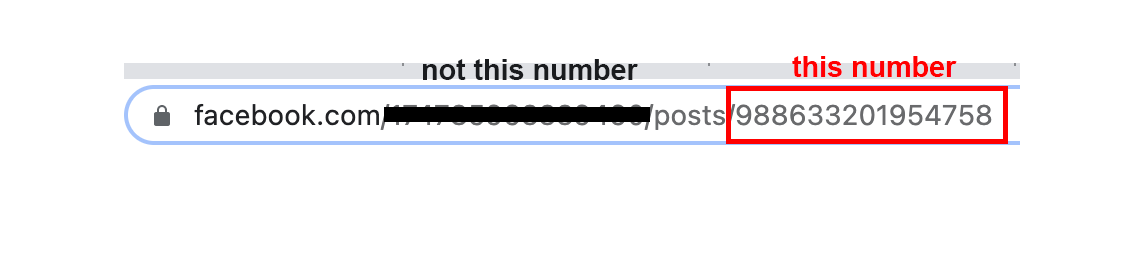
You should see a URL something like: www[.]facebook [.]com/LOTS OF NUMBERS HERE /posts/ANOTHER BIG NUMBER HERE (if you don’t see this framework exactly, skip to the asterisk at the end then come back to step 6)
Copy [Ctrl + C or Command +C] the post ID that’s in the URL at the end.
7. Duplicate the ad into the campaign you want.
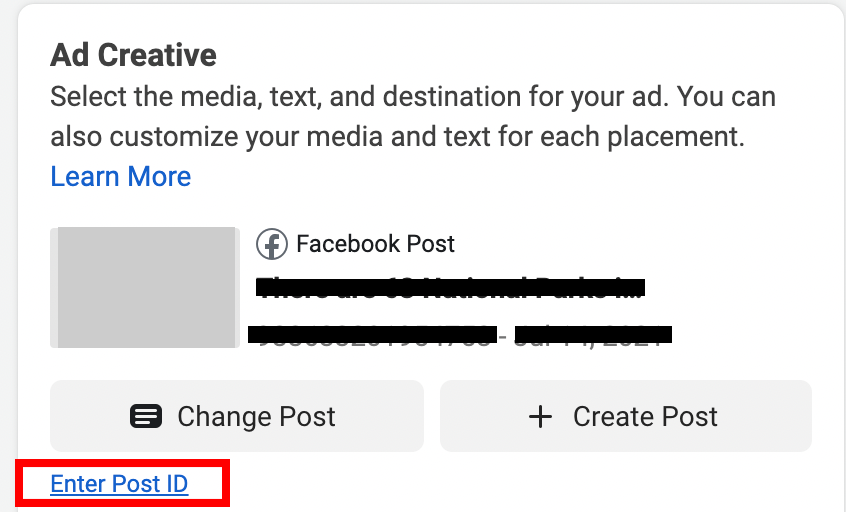
8. Change “Create Ad” to “Use Existing Post”
9. Enter the post ID below that drop down
**EDITED SUMMER 2022**
10. Recently, there’s a bit of a glitch with this process, so at this step (for now), enter the post ID as listed above, then there will be a notice: "Did you mean Post XXXXXXXXX?" Copy and paste that new post ID into the box.
11. Add any UTM parameters you desire in the URL Parameters box below and you’re all set! Not sure if you need UTMs? Check out our blog here.
** Didn’t see the Post ID correctly in the URL when you clicked “View Facebook Post with Comments”? Follow these steps:
Click the time/date stamp on the Facebook post you’re viewing. You should see something like: “Published by: YOUR NAME (?) TIME AND DATE HERE”. Click the time and date
The URL box will populate with a new URL. Copy the last set of numbers at the end of the URL. Now head back to step 6 to continue.
** Still not working? As we all know, Facebook can be buggy and is ever-changing. Here’s another way to Social Proof your ads if the above steps aren’t working:
If your string of characters aren’t numbers like the above options and are something like: /posts/pfbid02Qap32N9T3sXZdbMpqGaK5pgKvUpkNK43fagPJgj9aTcnjecqdvXNKzfGbY2WPEbml, follow these steps:
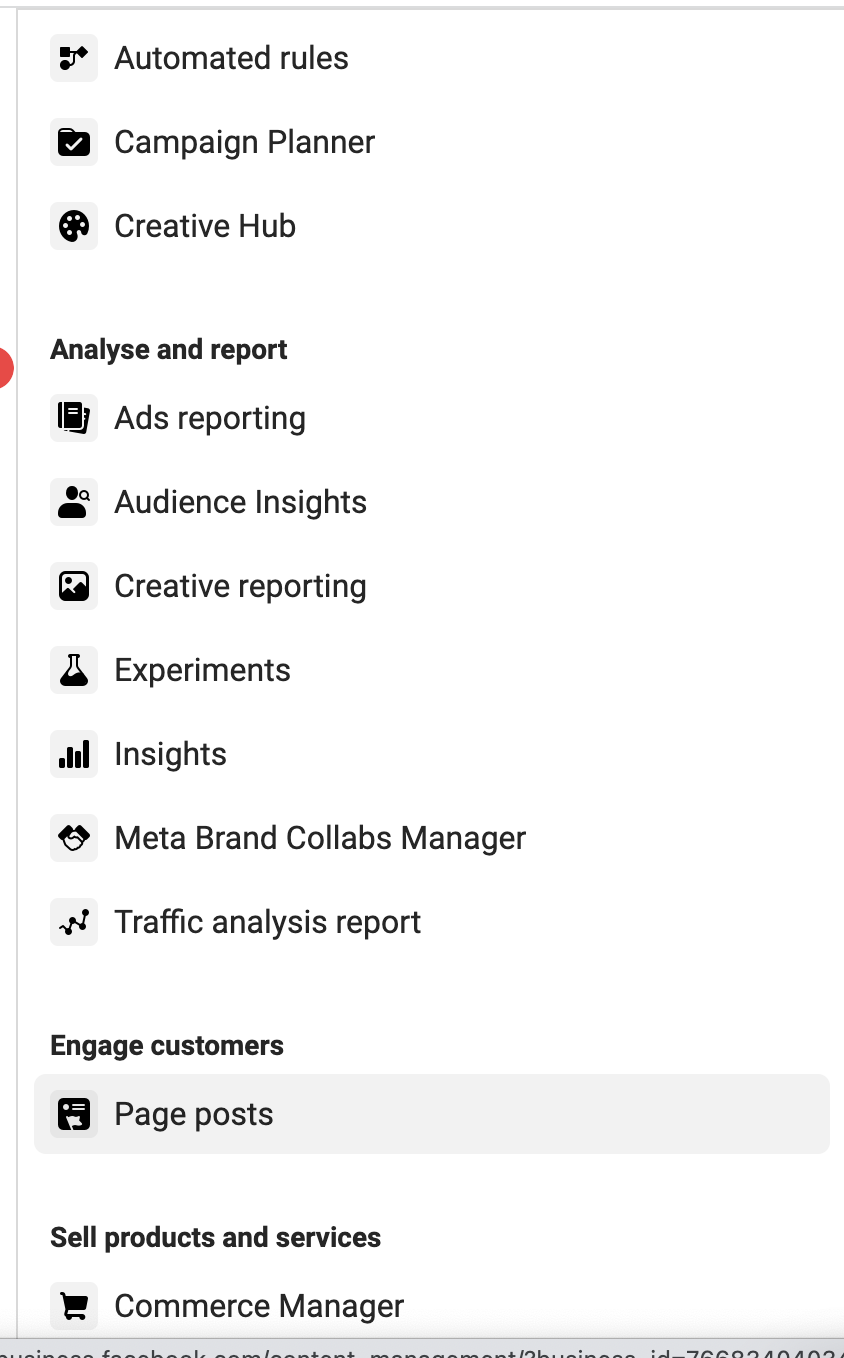
Go to: Page Posts (screenshot below), click on Ad Posts, select the ad account from top right and then you'll find all ad IDs to copy and paste into the Existing Post Ad ID field as mentioned above.
Happy social proofing! :)